Automate Booking.com Check-In Messages (2026 Guide)

Managing a short-term rental in Portugal means staying on top of guest registration requirements — and doing it manually for every reservation wastes time you don't have. If you're already using Booking.com and EazyAL, you can close the gap entirely: set up one automated message template and let the system handle guest data collection, SIBA/AIMA compliance, and access code delivery on autopilot.
This guide walks you through the exact steps to connect Booking.com's messaging templates to your EazyAL guest form, so every guest receives the right instructions at the right time — without you lifting a finger.
Why Automate Your Booking.com Check-In Message?
Portuguese accommodation law requires hosts to submit guest details to SIBA (the SEF/AIMA border reporting system) before or upon arrival. For most alojamento local operators, that means collecting passport numbers, nationality, dates of birth, and other data from every guest — including all members of the party.
Doing this manually over Booking.com chat is slow, error-prone, and easy to forget. Linking your Booking.com messaging templates directly to your EazyAL form solves three problems at once:
Compliance: Guest data arrives in EazyAL automatically, ready for SIBA submission.
Access automation: EazyAL can deliver door codes and Wi-Fi details only after the form is completed.
Guest experience: Guests get a professional, clear pre-arrival message with a simple link — no back-and-forth required.
The Room-Level Logic Constraint
Booking.com’s native template system does not have any rules or parameters that say "If room booked equals [X], send template [Y]". Their internal scheduling engine treats every reservation the same, regardless of what physical room or category was selected.
To bypass this natively, users must manually select a template for each guest, or a SaaS platform must step in externally to read the room data and send the message via an API. Such as Hospitable.
How to Automate Booking.com messages for a listing:
Step 1: Open Booking.com Messaging Templates
Log in to your Booking.com Extranet, then navigate to:
Property → Messaging preferences
This is where you create and manage automated message templates for your property. If you manage multiple properties, make sure you're in the correct property before continuing.
Step 2: Create a New Template
Click Create new template and give it a clear name. Good options:
Guest Registration & Check-InSIBA Guest RegistrationPre-Arrival Form
A descriptive name helps you manage multiple templates if you run more than one property.
Step 3: Write Your Guest Message
Paste the following into the message editor, then replace the placeholder with your actual EazyAL guest link:
Your EazyAL guest link looks like:
Find it in your EazyAL dashboard under the guest form or property settings.
Why mention local regulations? Guests occasionally push back on forms. Noting that it's required under Portuguese law (which it is) reduces friction and sets the right expectations upfront.
Step 4: Use Booking.com Dynamic Placeholders
Booking.com lets you personalise messages automatically using reservation data. Below the message editor, you'll see blue buttons to insert placeholders. The most useful ones:
Placeholder | What it inserts |
|---|---|
| Guest's first name |
| Guest's last name |
| Reservation check-in date |
| Reservation check-out date |
| Your property name |
| Length of stay |
These fill in automatically for every reservation, so Hi [FIRST_NAME] becomes Hi Sofia for each guest — no editing required.
Step 5: Schedule the Message
Once your template is saved:
Click the clock icon or Schedule template
Select Before guest check-in
Set the timing to 2 days before arrival
Sending 2 days before arrival gives guests enough time to complete the form before they leave home — which means you have their details and can prepare access instructions well in advance.
Step 6: Activate the Schedule
In the scheduling window:
Select Before guest check-in
Click Add to schedule
Save
The template is now live. Every future reservation will trigger the message automatically at the scheduled time.
Step 7: Messaging Security Settings
Booking.com does strip out links to combat phishing. If a SaaS or a host drops an unauthorized URL into a chat message or automated message, the guest will maybe see [Link was removed]
However, you can stop Booking.com from stripping your links by using their Messaging Security Settings. Add your link:

Recommended Message Timing
Message | When to Send |
|---|---|
EazyAL check-in form | 2 days before arrival |
Arrival instructions | After form completion (sent by EazyAL) |
Thank you / review request | 1 day before check-out |
EazyAL handles the middle step — once a guest completes the form, it can automatically send access codes and arrival instructions. You only need to set up the first and last messages in Booking.com.
Test Before Going Live
Before relying on this for real reservations, run a quick test:
✅ You receive the Booking.com message (send to yourself via a test reservation)
✅ The EazyAL link opens correctly on mobile
✅ The form submits without errors
✅ The guest appears in your EazyAL dashboard
✅ Access instructions are sent automatically after submission
Testing takes five minutes and saves a lot of guest-facing problems.
Troubleshooting Common Issues
Guests aren't receiving the message
Check the template is marked as active
Confirm the template is scheduled (not just saved)
Note: the template only applies to reservations made after it was enabled
The EazyAL link isn't clickable
Paste the full URL including
https://Remove any extra spaces before or after the link
Test the link in an incognito browser window
The EazyAL link isn't showing (Link was removed)
ensure you have added the link to Messaging Security Settings in Booking.com
Guests say they already provided their details
Explain briefly: "The form is used to comply with Portuguese accommodation reporting requirements (SIBA/AIMA) and to automate delivery of your door code and Wi-Fi details." Most guests are satisfied with a clear reason.
The Full EazyAL Automation Flow
When set up correctly, your Booking.com + EazyAL workflow looks like this:
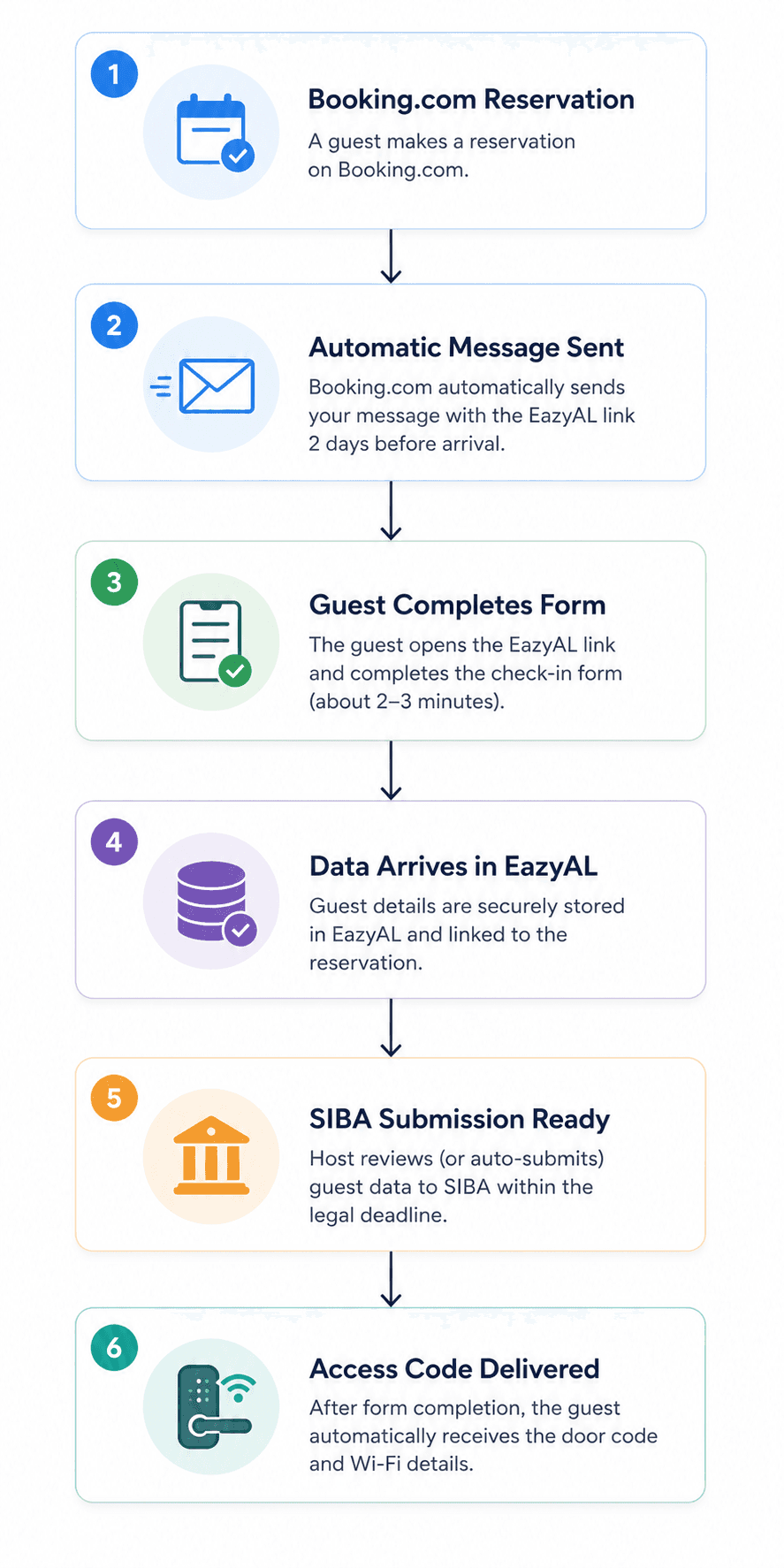
No manual messages. No missed registrations. No guests arriving without an access code.
FAQ
Can I use this with multiple Booking.com properties? Yes. You need to create the message template separately for each property in your Booking.com Extranet. Each property has its own EazyAL guest link, so make sure you use the correct link for each one.
Does this work if I also use Airbnb or other platforms? EazyAL supports multiple channels. For Airbnb, you'd set up an equivalent automated message through Airbnb's scheduled messages feature using the same EazyAL link. The guest form and SIBA submission process is the same.
What if a guest doesn't complete the form before arrival? EazyAL's link remains active, so guests can still fill in the form on arrival. Some hosts choose to send a reminder message one day before check-in as a follow-up.
Is this GDPR compliant? EazyAL collects only the data required for legal compliance under Portuguese law (SIBA/AIMA). Guest data is processed for the purpose of accommodation reporting and access delivery. Authoritative source on GDPR and accommodation data processing in the EU.
Does Booking.com allow external links in messages? Yes — Booking.com allows hosts to include external URLs in message templates. EazyAL links work correctly and are clickable in the Booking.com guest messaging interface.
Conclusion
Setting up an automated Booking.com message takes about 15 minutes and eliminates one of the most repetitive tasks in short-term rental management. Guests get a clear pre-arrival message, you get their data in EazyAL before they arrive, and your SIBA submissions are ready without any manual chasing.
If you're not yet using EazyAL for your alojamento local reporting, it's worth exploring — the combination of automated guest messaging, SIBA submission, and access code delivery in one flow is one of the most practical time-savers available to Portuguese short-term rental hosts.